Understanding and Creating repositories
A repository is the digital home for one biological asset in CellRepo.
It represents a single strain, plasmid, construct, cell line, or engineered variant, and contains the complete version‑controlled history of that asset over time.
It tracks how the asset changes, who made those changes, and why they matter.
Repositories are designed to evolve alongside the biology. As you perform edits, validations, or experimental updates, each meaningful step becomes part of the repository’s structured history. This makes the asset’s lineage transparent, shareable, and scientifically auditable.
You should create a repository whenever you begin working with a distinct biological asset. Examples include:
- A new engineered E. coli strain
- A plasmid or construct design
- A mammalian cell line under testing
- An experimental variant or branch of a project worth tracking separately
Repositories do not represent whole projects or collections of unrelated work.
Projects group work; repositories track individual assets.
Even early‑stage or evolving assets should have a repository — CellRepo is built to capture change from the very beginning.
Check out some examples of demo repositories by searching for "demo" in the search navigation. You can fork these and save them to your own workspace to see how they function.
- Demo 1: Versioned BL21 demo (simple).
- Demo 2: Versioned MG1655 strains
- Demo 3: Versioned BL21 strain with barcode
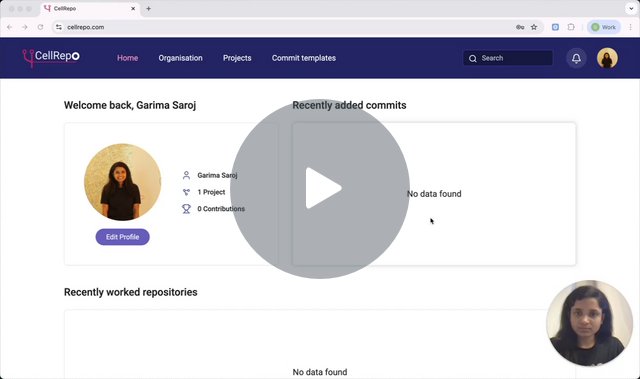
Watch a short video showing how repositories are created, structured, and explored inside a project.
Creating a Repository
Once you understand what a repository represents, the next step is to create one for the biological asset you want to track.
Repositories live inside projects and act as the structured space where all future updates (commits) for an asset will be recorded.
Open the Project
Navigate to the project that will contain this asset. Projects group related scientific work; repositories track individual strains, constructs, plasmids, or cell lines within that work.
Create a New Repository
Click Create repository. You’ll be asked for a few key pieces of information:
Name the Repository Clearly: Use a descriptive, standardised name—something meaningful months later, such as:
- Ecoli‑ΔlacZ‑v1
- K.phaffii‑Δhis3‑baseline
- Plasmid‑pABC‑GFP‑v2
Avoid names like “strain1,” “test,” or “final,” which become ambiguous over time.
Choose a Commit Template
Every repository must use a commit template because it defines what information will be captured in each commit.
We recommend that you create commit templates before creating a repository. Check out Understanding commit templates
If you already created templates, choose the one appropriate for this asset If you haven’t created templates yet, you can:
- Use the default template
- Add a commit template later
Commit templates are version‑controlled, so the history stays accurate even if templates evolve.
Set Visibility and Access
You can decide who will see or work on this repository:
- Public (for everyone in cellrepo.com)
- Private (only you)
- Private + Specific invited collaborators (users & Labs)
- Project group (same members as project group)
- Organisation (all members of your organisation)
You can assign specific people or labs with admin, read or write access.
You can toggle options to allow forking at this stage. Forking is the ability for someone else to make a copy of your repository and then work on it independently (without your knowledge). It is often used for public repositories. You can read more about it here.
All settings can be changed at any time.
Add an Optional Description
A short description helps collaborators quickly understand the purpose or biological context of the repository.
Finalise Creation
Click Create repository.
At this point:
- The repository exists
- It contains no commits yet (no history is recorded until you create the first commit)
- You’ll see sections such as Commits, Latest commit, Branches, and Settings become available
Navigating a Repository
Once a repository is created, it becomes the central place to explore the current state, full history, and structure of a biological asset.
The interface is designed so you can quickly see where the asset is now and how it has evolved over time.
When you open a repository, you land on the Latest Commit page. A navigation panel on the left provides quick access to:
- Latest Commit
- Commits
- Branches
- Merge Requests
- Settings
Latest Commit
The Latest Commit page shows the most recent recorded state of the asset. At the top you will see:
- Repository name
- Description (if provided)
- Current branch (with option to switch to the latest commit in another branch)
- Quick actions, such as create a new commit or Fork commit
- Ability to download a commit report, which includes all commit fields and a comparison with the previous commit
Below this header, you will see all template fields completed for this commit—this is the definitive snapshot of the asset at that point in time.
Commits
The Commits tab shows a chronological overview of every meaningful update. Each entry includes:
- Commit message
- Timestamp
- Author
- Template version used
- Any linked files or data
This timeline forms the backbone of CellRepo’s traceability: it reveals what changed, when, and why.
Clicking any commit opens its details, including options to:
- View all recorded fields
- Download the report
- Compare the commit with the previous version
Branches
The Branches tab displays parallel development paths for the asset—for example:
- Variant strains
- Experimental forks
- Alternative optimisation routes
Most new repositories start with a single main branch. As work becomes more complex, you can create additional branches.
On this page you can do the following
- Create a new branch (button on right hand side)
- Change commit template (from three-dot menu to right of branch name)
- Add a new commit (from three-dot menu to right of branch name)
See more in the Branches section in concepts
Merge Requests (Optional Advanced Feature)
Merge Requests allow you to combine work from one branch back into another (often main). This is useful when:
- Two collaborators work in parallel
- Experimental paths converge
- You want to maintain a single, clean lineage
During a merge:
- You create a new commit representing the combined state
- A comparison table appears so you can select which fields to keep when conflicts occur
- You complete the merge by syncing and pressing Merge
More details are provided in the Merging section in concepts.
Settings
The Settings tab lets you control repository‑specific details, including:
- Name and description
- Privacy
- User access
- You can also delete the repository here
Adjust these settings as your workflow or collaboration needs change.
Where to Go Next
Once you’re familiar with navigating the repository:
- Make your first commit — capture the asset’s current state
- Add data, files, or sequences as your work evolves
- Introduce branches or merge requests if you begin exploring parallel experimental paths
Getting help
If you’re unsure how to structure a repository, how visibility should work, or how to use commits and templates, please reach out:
We’re happy to help you think through real lab scenarios.