Log in
Once you’ve created and confirmed your CellRepo account, logging in is straightforward.
The first time you access your workspace, you’ll also complete a one‑time two‑factor authentication (2FA) setup to secure your account.
Quick Start
To log in:
- Open the CellRepo login page.
- Enter your email and password.
- Click Log in.
- On your first login, complete a short 2FA setup (details below).
- After this initial setup, you’ll land on your dashboard, which may be empty if you’re working individually or contain shared work if you belong to an organisation.
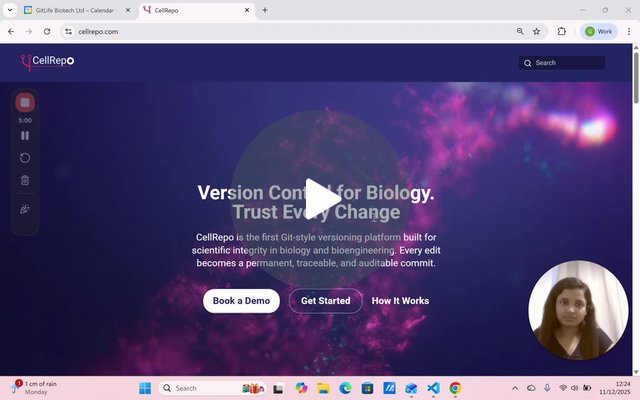
For a visual demonstration, you can watch a short video covering the login flow and the first‑time authentication setup.
First‑time login: Two‑factor authentication (2FA)
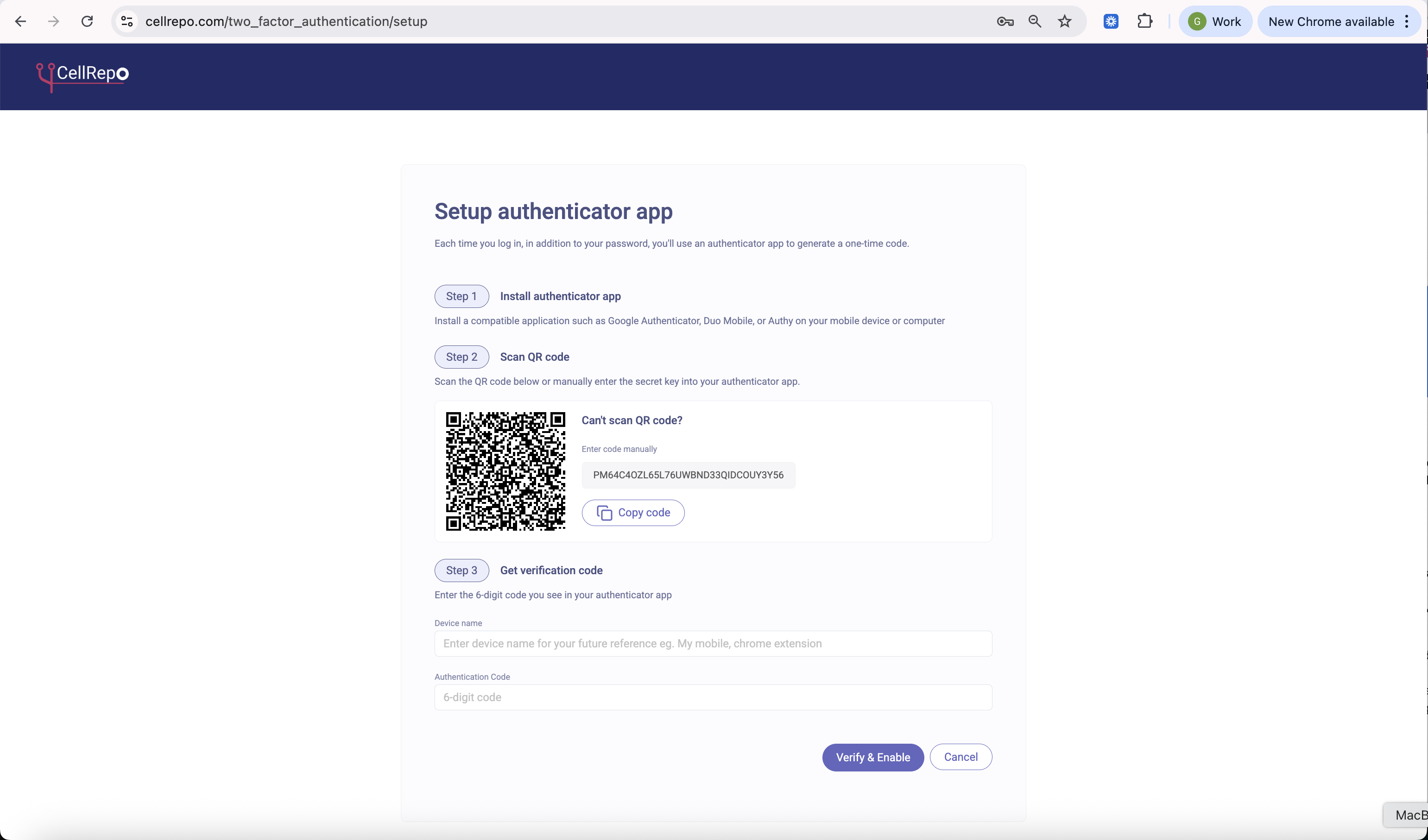
Your first login requires you to set up 2FA. This takes less than a minute and significantly improves account security. You only need to do this once.
What you need
Any standard authenticator app, such as:
- Google Authenticator
- Microsoft Authenticator
- Any other TOTP‑compatible 2FA app
How to set it up
- Install an authenticator app if you don’t already use one.
- On the CellRepo page, scan the QR code presented.
- Your authenticator app will generate a temporary 6‑digit code.
- Enter this code to confirm and complete the login.
- After confirmation, you’ll be logged in automatically.
After authentication Once 2FA is set up:
You’ll be taken directly to the CellRepo dashboard.
What appears depends on whether you’re working alone or within an organisation (e.g., empty workspace vs. shared projects).
Troubleshooting (Additional Information)
If something doesn’t work during login or authentication, the most common causes are simple:
Incorrect credentials
- Double check email spelling and password.
- Ensure your password manager isn’t auto‑filling an old value.
Authentication code issues
- Codes refresh every few seconds — make sure you’re entering the current one.
- Confirm your device clock is correct; TOTP apps rely on accurate time sync.
If the QR code won’t scan
- Enter the setup key manually in your authenticator app (your app will show an option for this).
- Screenshots or screen glare can interfere — adjusting brightness usually helps.
Need help?
If login or 2FA setup still doesn’t work, reach out: support@cellrepo.com
The team can assist with authentication problems or account access issues.